
SET UP iOS DEVELOPMENT & BUILD CARDBOARD DEMO
Part A: Set Up Unity | Part B: Deploy in Xcode | Part C: Update the Scene
For setting up the iOS environment, we’re including the build of the Cardboard Demo. If you have any problems with this set-up, go to: Google Developers page: “Getting Started with Unity for iOS” >> https://developers.google.com/cardboard/unity/get-started-ios
PART A: SETTING UP UNITY FOR IOS / CARDBOARD
STEP 1: Download and install Unity 5.2 or higher.
STEP 2: Download and install Xcode from the App Store:
Xcode is a free but large application, so expect a long download.
STEP 3: Download the Cardboard Demo SDK as a zip file and extract - https://github.com/googlesamples/cardboard-unity
STEP 4: Launch Unity and import the Cardboard SDK for Unity as a custom package.
The “CardboardSDKForUnity” package is located within the “cardboard-unity-master” folder.
Import all components – don’t uncheck any boxes.
STEP 6: In Unity, load the Demo Scene by clicking on it in your assets folder.
Go to: Assets > Cardboard > DemoScene
Click on “DemoScene” with the Unity icon. See image below:
STEP 7: Configure the BUILD SETTINGS in Unity.
Go to: File > Build Settings (CTL + SHIFT + B)
Switch platform to “iOS” in the Platform menu – you must click on “Switch Platform.”
Click on “Player Settings” >
- Go to the Inspector on the right hand side of Unity.
- In “Other Settings”, input a unique identified under “Bundle Identifier”
- Example: “game.TestProjectAndroid”
- In “Configuration” under “Other Settings”:
- Set “Scripting backend” to “Mono2x”
- Set “Target minimum iOS Version to “8.0”
- In “Resolution and Presentation,” set “Default Orientation” to “Landscape Left”:
SEE IMAGE FOR PLAYER SETTINGS FOR iOS BUILD IN UNITY:
From: Google Developers page: “Getting Started with Unity for iOS” >> https://developers.google.com/cardboard/unity/get-started-ios
STEP 1: Open XCode. From the File > Open… menu, open the XCode project that you created. It will be a file called Unity-iPhone.xcodeproj inside the directory you just saved under in the last section.
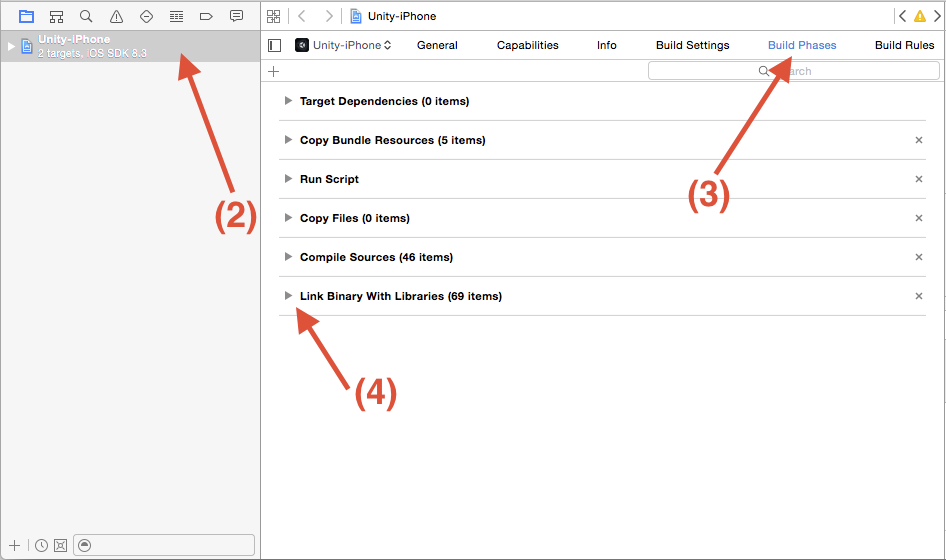
Security.framework.CardboardSDK.bundle file in [your Unity project]/Assets/Plugins/iOS. Click Add.If all went well, you should see a “Build Succeeded” and the Cardboard demo launches on your iPhone!
QUESTION: What is the flow to update the scene? Make updates in Unity, build, then just build again in Xcode?
ANSWER:
- Make updates in Unity.
- Go to Build (NOT Build and Run).
- You’ll be prompted to replace or append to the Xcode project.
- Choose Append.
- Then build from Xcode. The settings will be retained as long as you append and don’t replace.
Quick Start - iOS
PART A: Setting up Unity for iOS/Cardboard
- Download and install Unity 5.2 or higher - https://unity3d.com/get-unity/download?ref=personal
- Download and install Xcode from the App Store
- Download the Cardboard Demo SDK as a zip file and extract – https://github.com/googlesamples/cardboard-unity
- Launch Unity and import the Cardboard SDK for Unity as a custom package.
- Import “CardboardDemoForUnity” as a custom package.
- In Unity, load the Demo Scene by clicking on it in your assets folder.
- Configure the BUILD SETTINGS/PLAYER SETTINGS in Unity.
- CLICK BUILD.
Part B: Deploying Cardboard demo in Xcode
Go through the instructions on left carefully!